Monday, July 18, 2011

Create an iTunes App Store Account Without a Credit Card

Problem

In order to download free apps from the iTunes app store, you need a valid iTunes account. However, when trying to create an account in iTunes, it requires you to have a valid credit card.

Fix

On your iPhone/iPod/iPad:

  1. Log out of the app store (Settings > Store > Click on Apple ID > Sign Out
  2. Open the App Store
  3. Download and install a free application
  4. Select "Create a New Apple ID from the popup
  5. After entering personal details, creating a password and agreeing to the terms and conditions, select "None" as your payment option (see image)
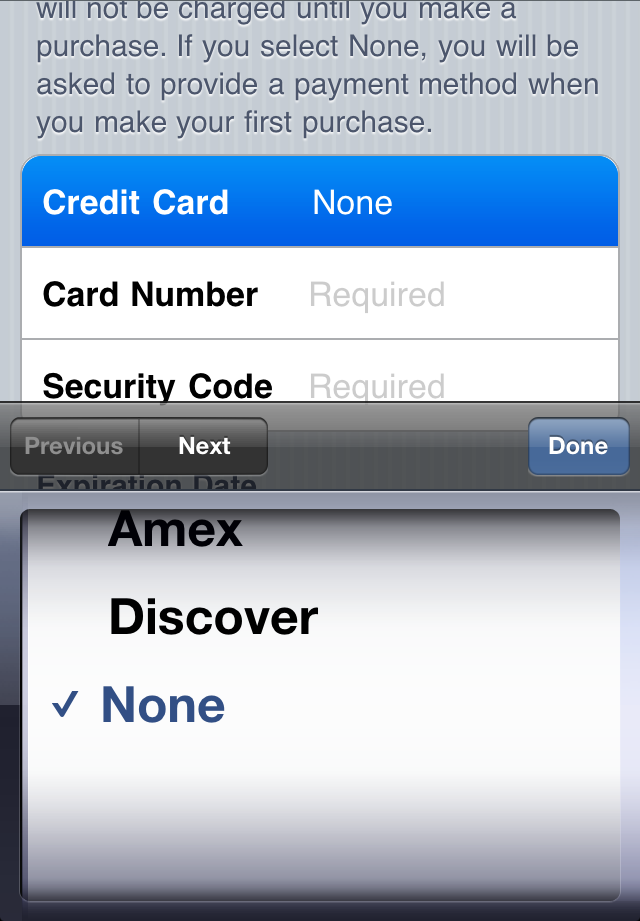
Information and images provided by Apple support at http://support.apple.com/kb/ht2534

Thursday, April 21, 2011

Issue: Unable to copy a voice memo from your iPhone

Problem

A number of voice memos (especially those with durations beyond 2 minutes), may not appear in iTunes under the voice memos section of the iPhone. If you have never synced your iPhone with iTunes before, iTunes may warn you that all data on the iPhone will be erased before it can sync.


Fix

  1. Download and install iPhoneBrowser - http://code.google.com/p/iphonebrowser. Important: You do not have to jailbreak your iPHone for this to work!
  2. Connect your iPhone to the computer
  3. Open iPhoneBrowser
  4. In the leftside folder view, open "Recordings". The voice memos will appear on the right side directory listing
  5. Right click on the memo you wish to copy and choose "Save as". Select the name and location for the saved file. Note: The file will be in m4a format. iTunes will play this file natively.

Monday, April 11, 2011

Issue: Allocated Space Not Appearing In VMware Vsphere Virtual Machines

Problem
Hard disk size changes made to Windows based virtual machines(vm) from within VMware Vsphere, do not appear to take effect in the virtual machine.

Fix
This isn't so much a fix as it is a process. Once you have made disk changes to your vm from within Vsphere, do the following:

  1. Log into the vm as an administrator
  2. Open "Disk Management" (Many ways to do this, such as right clicking on "My Computer", choose "Manage" then Disk Management)
  3. Right click on the main drive and choose "Extend Volume".
  4. Select the unused space and choose your extend options.
  5. Voila! The updated space is now available in your vm.

Tuesday, November 23, 2010

iOS 4.2 Changes Orientation Lock Switch on the iPad to Volume Mute

Problem
After updating to iOS 4.2, the functionality of the orientation lock switch changed to a volume mute switch.

Fix
  1. Open the multi-task bar on the iPad (push the home quickly two times)
  2. Scroll until you see the orientation lock. The orientation lock is available as the first option on the multi-task bar (see image below)>
  3. Touch the orientation lock one time to lock landscape orientation. Touch it again to unlock it.


Orientation lock on the left

Tuesday, November 9, 2010

Error 1327: Invalid Drive E:\

Problem
When trying to uninstall a program (Windows), the uninstaller gives an error message that states "Error 1327.Invalid Drive E:\".

Fix
  1. Open Regedit
  2. Navigate to the following registry key: HKEY_CURRENT_USER\Software\Microsoft\Windows\CurrentVersion\ Explorer\User Shell Folders
  3. Look for value data that points to a specific drive letter. For example, the value "My Pictures" may point to F:\Pictures. Verify the drive and folder specified exists.
  4. If the drive and folder shown do not exist, change the value data to reflect the path to the default folder path in the user's profile. For example in Windows 7, if "My Pictures" points to "F:\Pictures", change "F:\Pictures" to "%USERPROFILE%\Pictures". The default location may be different in XP or Vista.
This issue can occur after removing a hard drive that was used for storage and the default user profile folders' paths were changed to use the storage drive as a default.

Friday, October 8, 2010

Eject CD/DVD on Mac Menu Bar

Problem
You cannot find an eject CD/DVD button on the Mac.

Fix
Add an eject button to the Mac menu bar. In Finder, navigate to /System/Library/CoreServices/Menu Extras. Then double click on the Eject.menu. Now an eject button will be available on your menu bar.

To remove it, just hold down the command button on your keyboard and drag the button off your menu bar.

I remember a discussion I had with a friend about why he didn't like Macs. One thing he noted was that he didn't know how to eject CD's and DVD's. Of course there are multiple ways to ejects discs on a Mac, but this one seemed to be exactly what he was looking for. Thanks goes to OSX Daily for this tip.

Saturday, September 25, 2010

Email Body on iPhone is Blank

Problem
When opening email in the native iPhone email application, the body is blank and no content is displayed. The subject line and content preview display without issue.

Fix
Restart the iPhone.
